Host OS Tips
From Openmoko
m (Category: +host OSes) |
MinhHaDuong (Talk | contribs) (Paste VNC tip) |
||
| Line 14: | Line 14: | ||
[[Category:System Developers]] | [[Category:System Developers]] | ||
[[Category:Host OSes]] | [[Category:Host OSes]] | ||
| + | |||
| + | == SVN == | ||
| + | |||
| + | (from Matthias Apitz) Install a VNC server on the FR | ||
| + | |||
| + | # opkg install x11vnc | ||
| + | |||
| + | Create a launcher icon on the desktop like this: | ||
| + | |||
| + | # cat /usr/share/applications/x11vnc.desktop | ||
| + | [Desktop Entry] | ||
| + | Encoding=UTF-8 | ||
| + | Name=x11vnc | ||
| + | Comment=Bring up x11vnc | ||
| + | Exec=xterm -e x11vnc -display :0.0 -ncache 10 | ||
| + | Icon=x11vnc | ||
| + | Terminal=false | ||
| + | Type=Application | ||
| + | Categories=Application;Utilities; | ||
| + | SingleInstance=true | ||
| + | StartupNotify=true | ||
| + | |||
| + | One can now fully control the FR from the desktop by launching | ||
| + | |||
| + | $ vncviewer 192.168.0.202:0 | ||
| + | |||
| + | It even accepts keyboard input, for example in the dialer, or any other control using the desktop mouse as the styler; this way it's also very easy to make screenshots for presentation, or even capture a session in a movie with: | ||
| + | |||
| + | $ vnc2swf openmoko.swf 192.168.0.202:0 | ||
| + | |||
| + | some examples here: | ||
| + | |||
| + | http://www.unixarea.de/home.jpg | ||
| + | http://www.unixarea.de/minimo.jpg | ||
| + | http://www.unixarea.de/dialer.jpg | ||
Revision as of 18:50, 28 September 2008
With a variety of linux distributions come a myriad of differences. Below are some quirks you may find when building, flashing or talking to your Neo1973
OpenSuSE 10.2
u-boot
When booting the Neo1973 in u-boot mode /dev/ttyACM0 may not appear automatically. You may have to:
# modprobe cdc_acm
before hand. Conversely cdc_ether seems to work automatically without any issues.
SVN
(from Matthias Apitz) Install a VNC server on the FR
# opkg install x11vnc
Create a launcher icon on the desktop like this:
# cat /usr/share/applications/x11vnc.desktop
[Desktop Entry]
Encoding=UTF-8
Name=x11vnc
Comment=Bring up x11vnc
Exec=xterm -e x11vnc -display :0.0 -ncache 10
Icon=x11vnc
Terminal=false
Type=Application
Categories=Application;Utilities;
SingleInstance=true
StartupNotify=true
One can now fully control the FR from the desktop by launching
$ vncviewer 192.168.0.202:0
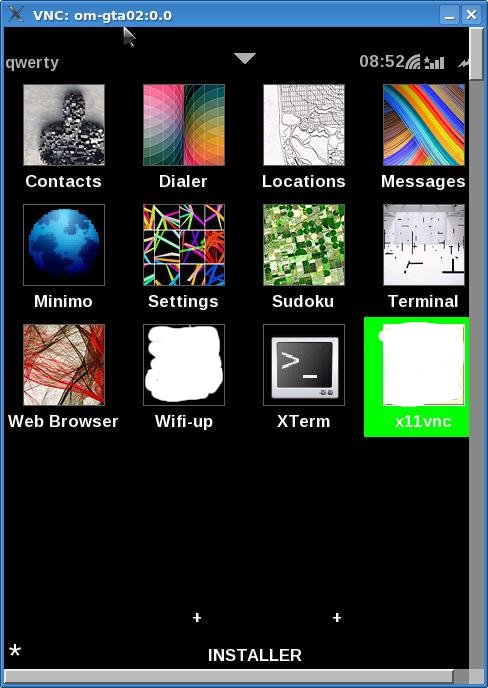
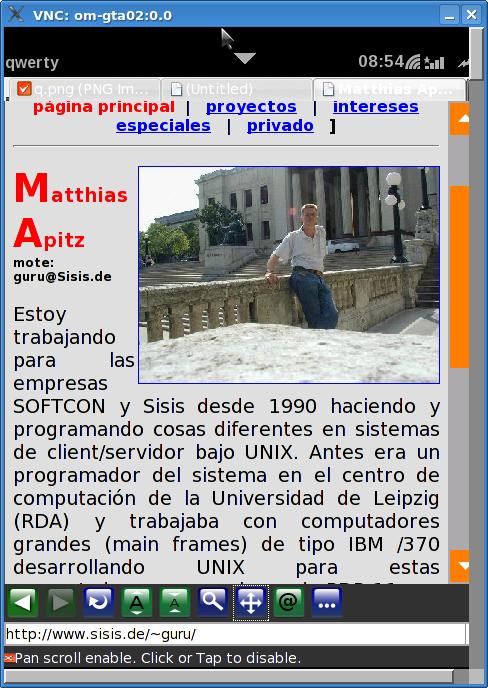
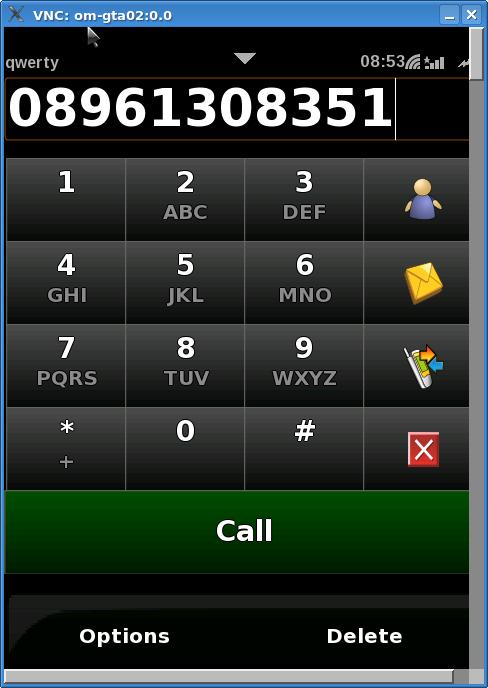
It even accepts keyboard input, for example in the dialer, or any other control using the desktop mouse as the styler; this way it's also very easy to make screenshots for presentation, or even capture a session in a movie with:
$ vnc2swf openmoko.swf 192.168.0.202:0
some examples here:
http://www.unixarea.de/home.jpg http://www.unixarea.de/minimo.jpg http://www.unixarea.de/dialer.jpg